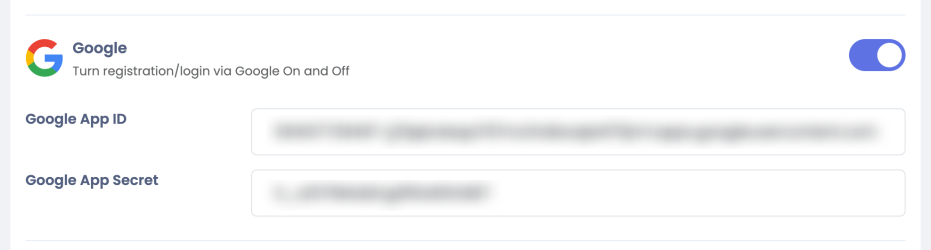
Google
After installing Sngine, now you can, in easy steps, integrate Google with it to let your users log in with their Google accounts- First, go to: https://console.developers.google.com/ and sign in with your Google account
- Click Select a project, then click on NEW PROJECT, and follow the steps
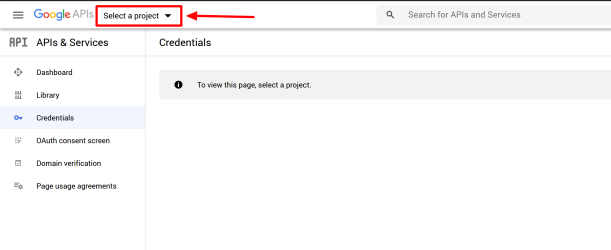
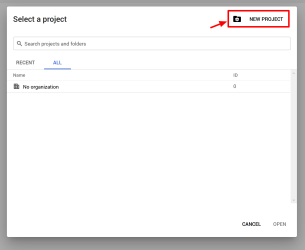
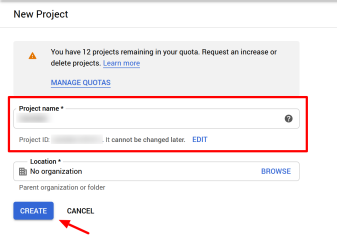
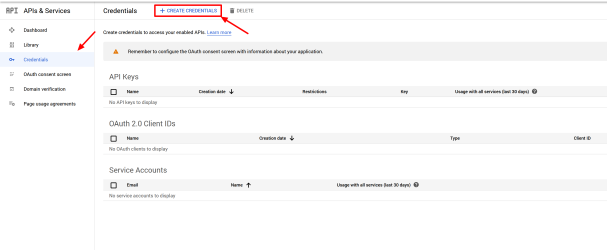
3. Select Credentials and click Create Credentials, and select OAuth client ID
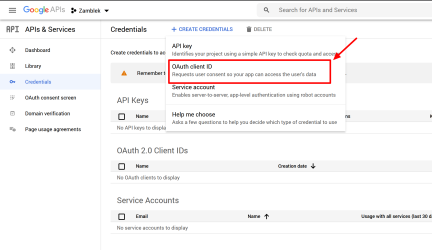

4. But first, you will need to configure the Consent Screen and will need to have the verification from the Google Team
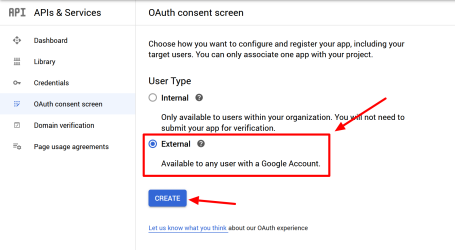
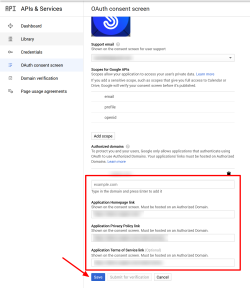
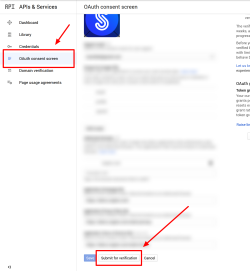
5. After you have configured the Consent Screen, you need to submit your app for the verification process by the Google Team
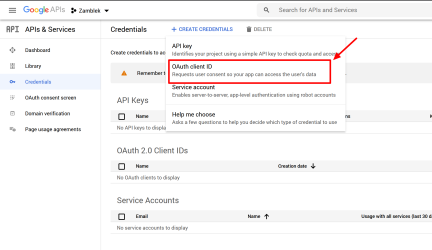
6. Now we can create credentials Select Credentials and click Create Credentials, and select OAuth client ID
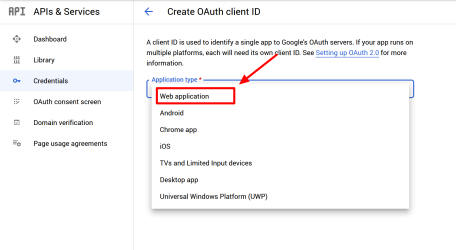
7. Provide this URI as the Callback URL for your application as following:
If you installed Sngine in your domain directly like domain.com the URI should be like this:
If you installed Sngine in your domain directly but without www like domain.com the URI should be like this:
If you installed Sngine in sub-domain like sub.domain.com the URI should be like this:
If you installed Sngine in a directory like domain.com/directory the URI should be like this:
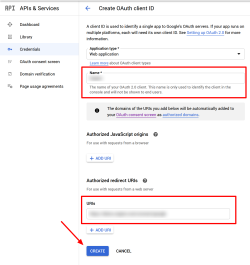
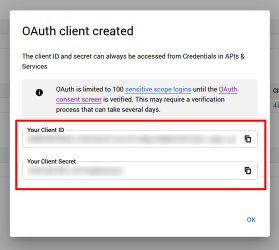
8. Copy both Client ID and Client Secret
9. Now goto to Sngine Admin Panel -> Settings -> Registration Settings -> Social Login and paste both keys as shown